
Specialist review in the browser
The layout for the Specialist review in the admin web app: a wide left column with a counter per eye and the intake, both eyes side by side, and the reference photos with their full descriptions below them. The whole review can be clicked through: queue, session, grading per eye, contact lens fit, recapture, decision, advice and the customer report.
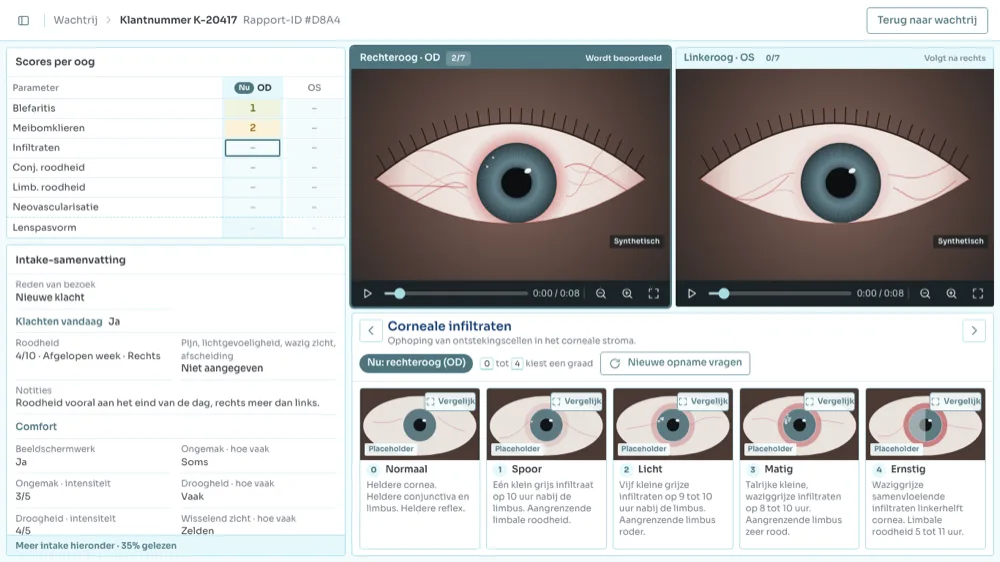
The review screen at 1366×768: each eye 435×289 pixels, about 110 mm wide on a 15.6 inch laptop. On the store iPhone the grading video is about 65 by 48 mm.
What to try
- Customer K-20417 wears contact lenses, so the contact lens fit follows the EFRON grades for each eye.
- Customer K-20398 does not wear lenses and has a full eye test, before and after correction, in the OD and OS table of the intake. Request a recapture and tick the eye to record again on its video.
- Customer K-20211 is back after a recapture of the left eye: the right eye's grades are already filled in and grading starts on the left eye.
- Grade with a click or the keys 0 to 4; the arrow keys move between conditions. A grade moves on to the next open condition after a short pause, right eye first; the frame moves to the other eye when the right eye is done. Click the other eye's name or picture to grade it, and use the arrows around the condition name to go back within an eye.
- On the decision step, check the grades per eye in the left column, type advice and watch the customer report draft next to it. Sending to the store confirms that report; the optician sends it to the customer.
- Leave the queue open for a few seconds: a new session arrives and the count in the browser tab title goes up. There are no notifications.
- K-20290 is completed and opens read only. K-20355 is held by another specialist and cannot be opened.
- The login screen after 15 minutes without activity.
About the material
- All customers, stores, people and numbers are invented.
- The eye videos are drawn stand-ins with play, scrub, zoom and full screen controls and no download control. The reference photos are drawn placeholders per condition and grade, not EFRON images, and are always shown whole.
- The screens are in Dutch with the wording of the Eyox Scan app. Words that the app does not have yet are listed in the journey map.